Choose Windows or Linux
Run the agent on a Windows or Linux x86-64 computer that can reach the miners on your trusted network. A phone can open the dashboard. Download the agent on the computer where it will run.
Download agent · Windows x64
File details · 31.8 MB
7f5664cd851c1ff268fb91872a8231f1d18435f95a2ad207d07c543a448cdb38Download agent · Linux x64
File details · 12.2 MB
96d33834a40cfce669404241465e24d9421fa28df2e62a58cdc8bd07b7c90237Keep this page on your computer
What to do
Download the agent from this site
- Sign in to the monitoring service and create or select your farm. Use the sign-in methods offered in the service.
- Copy the farm Hash ID and your API key from the account into the local agent settings. If access to the miner is requested, enter it there. The website never needs these values.
- In the agent, set the network range for your equipment. Scan, select the intended devices and choose the action to add them to monitoring.
- Open the farm dashboard. Check the device name, time of its latest report and readings. Adding monitoring is a separate action from updating firmware.
Is “Add to Monitoring” unavailable? Check the farm Hash ID and API key in the agent settings, then select at least one miner. After adding it, check the result by MAC address and allow a few minutes for the dashboard to update.
Troubleshooting
Device missing? Check that the agent is running, the computer can reach the miner, and the farm ID matches. Recheck the selected device before repeating an action.
Back to the guide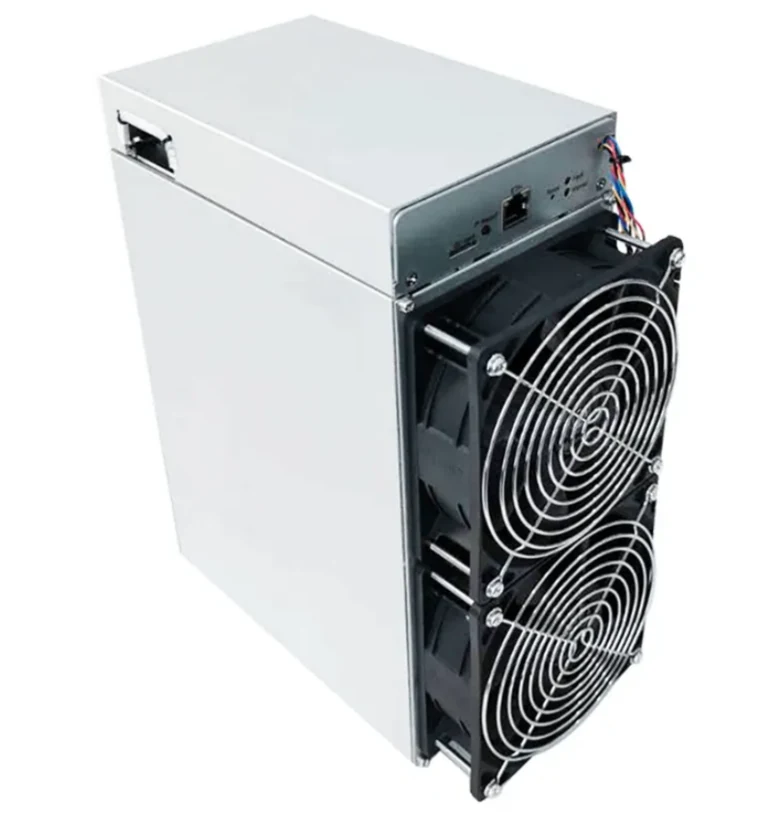 Z15 or Z15 Pro? The three letters that change your firmware choice
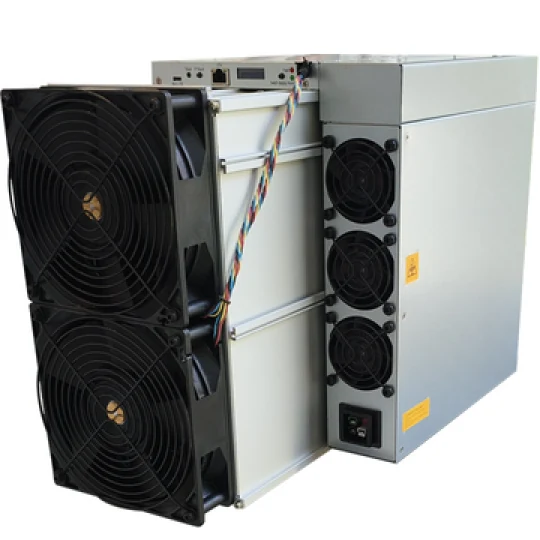 What 305 TH/s means for an air-cooled S23
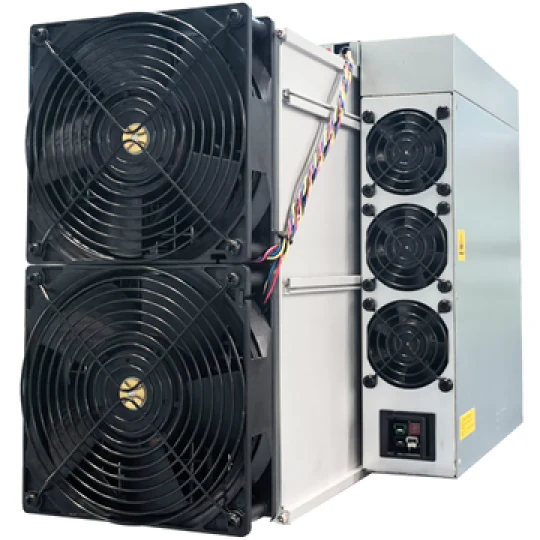 Reading an L11 specification alongside a Scrypt pool report